
The new FebNMS · now on every platform
Your network,
on every screen.
The LibreNMS client for every platform. Faster and handier than the web interface: right-click and bulk actions, full keyboard shortcuts, one-tap push, AI-written rules, and everything synced across your devices.
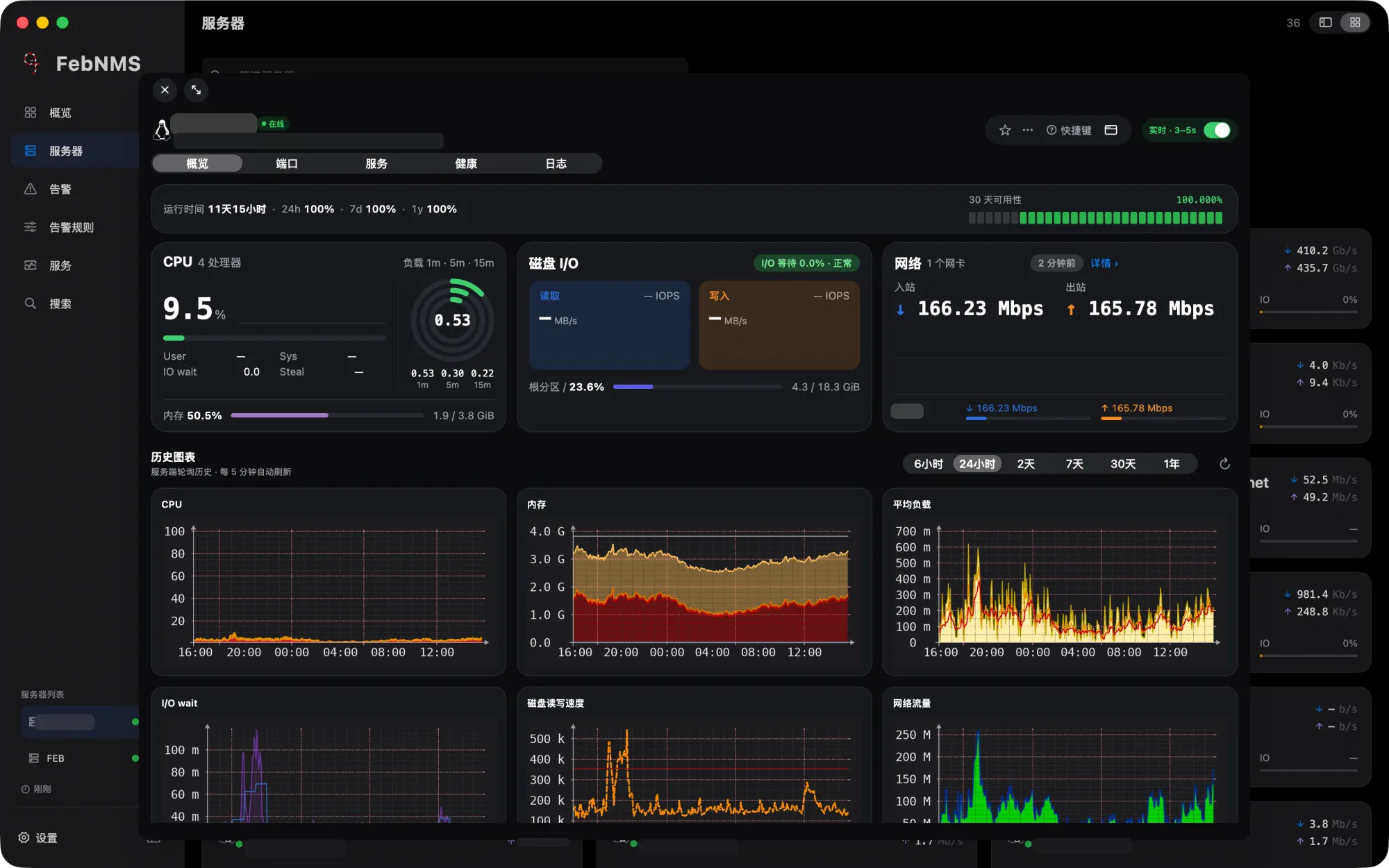
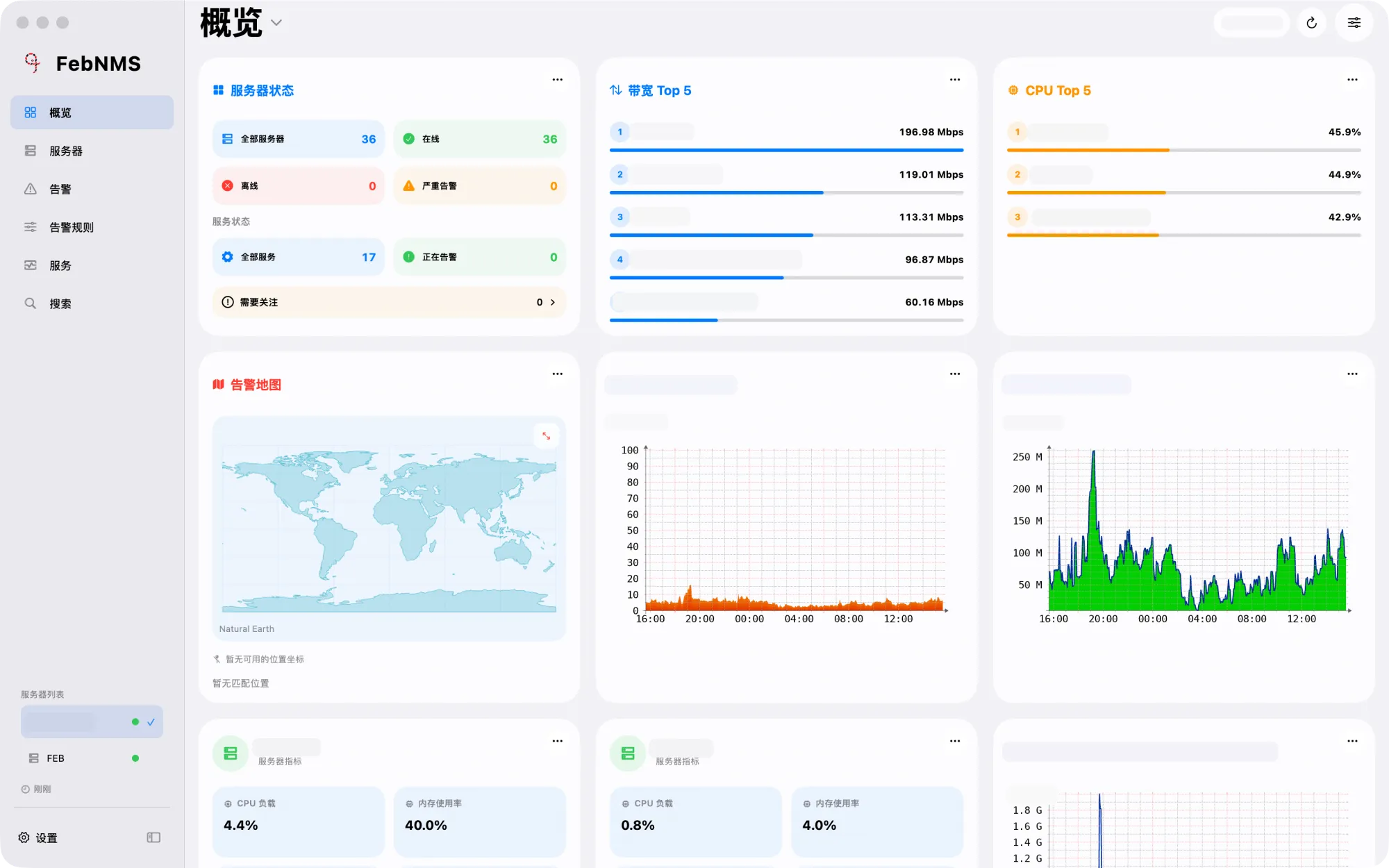
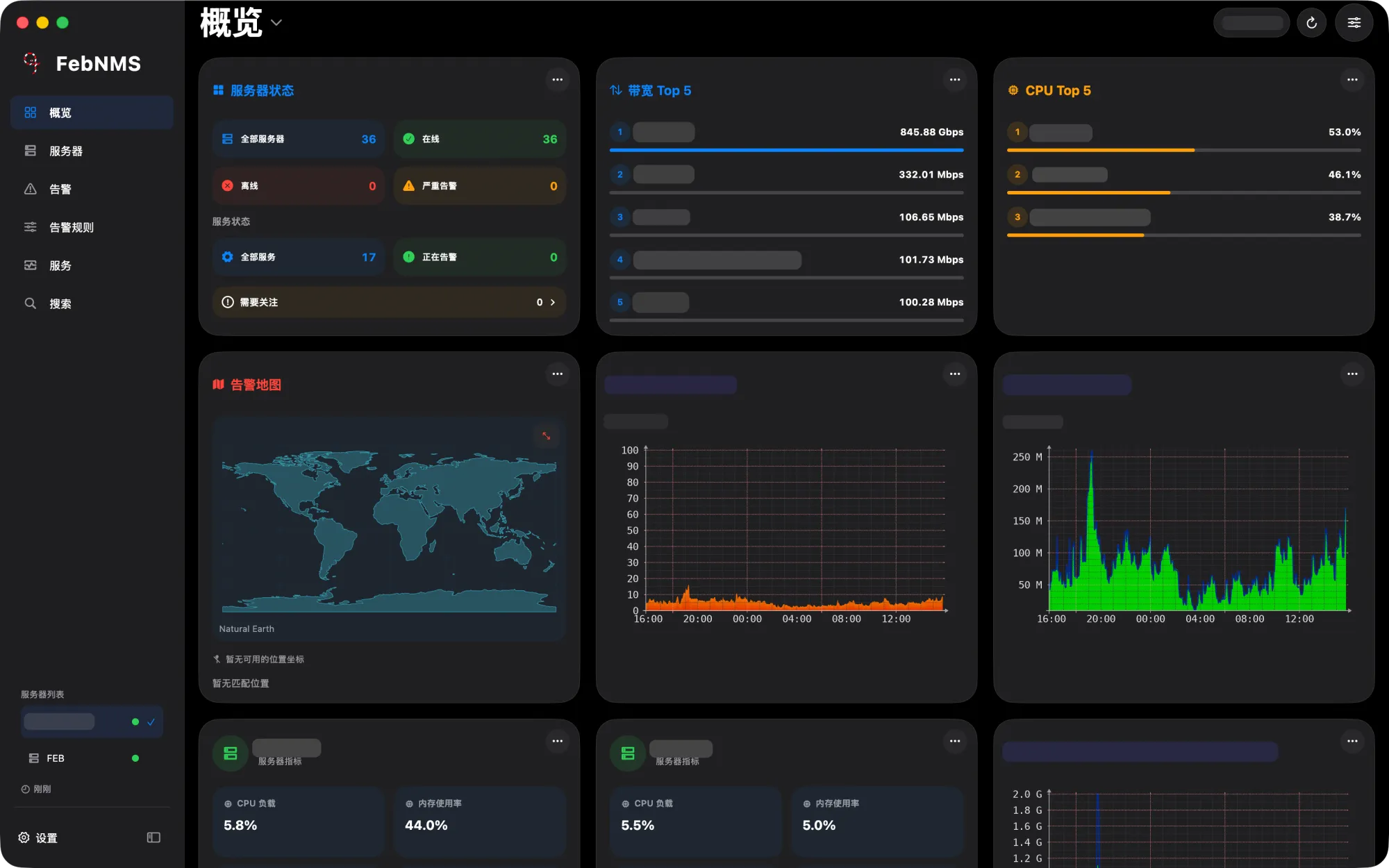
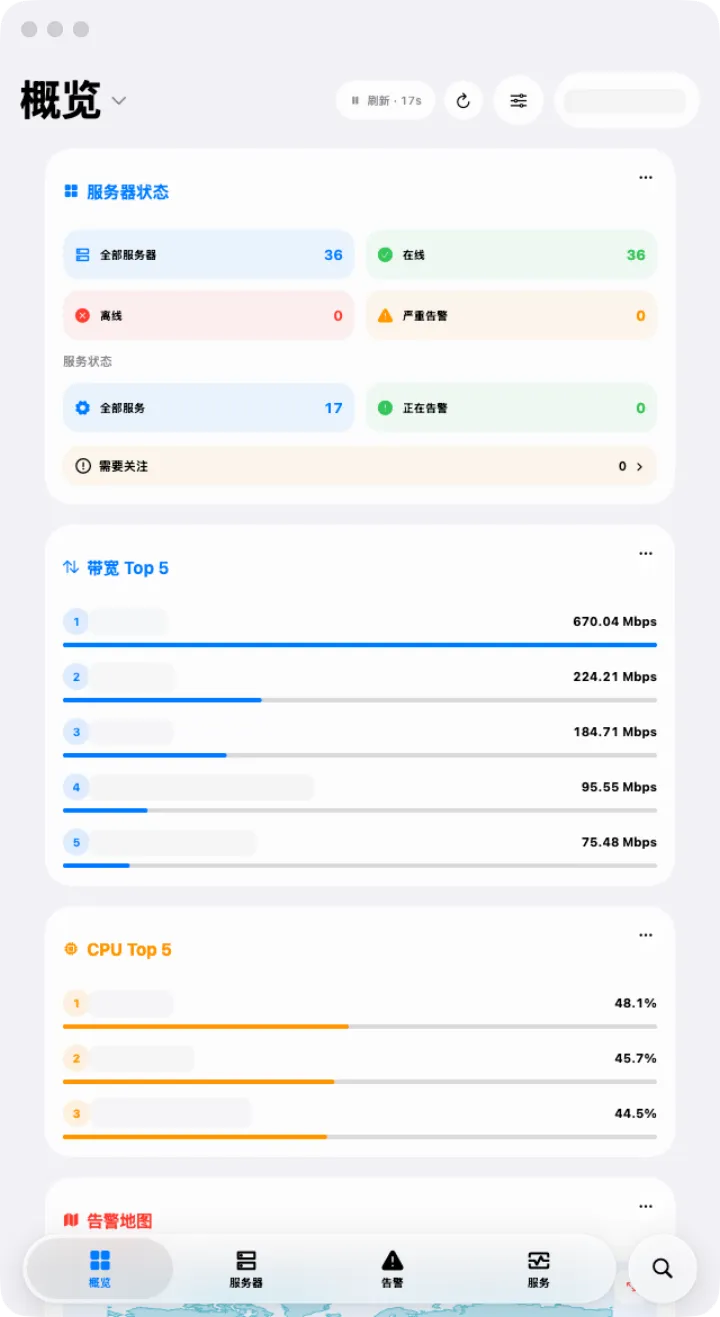
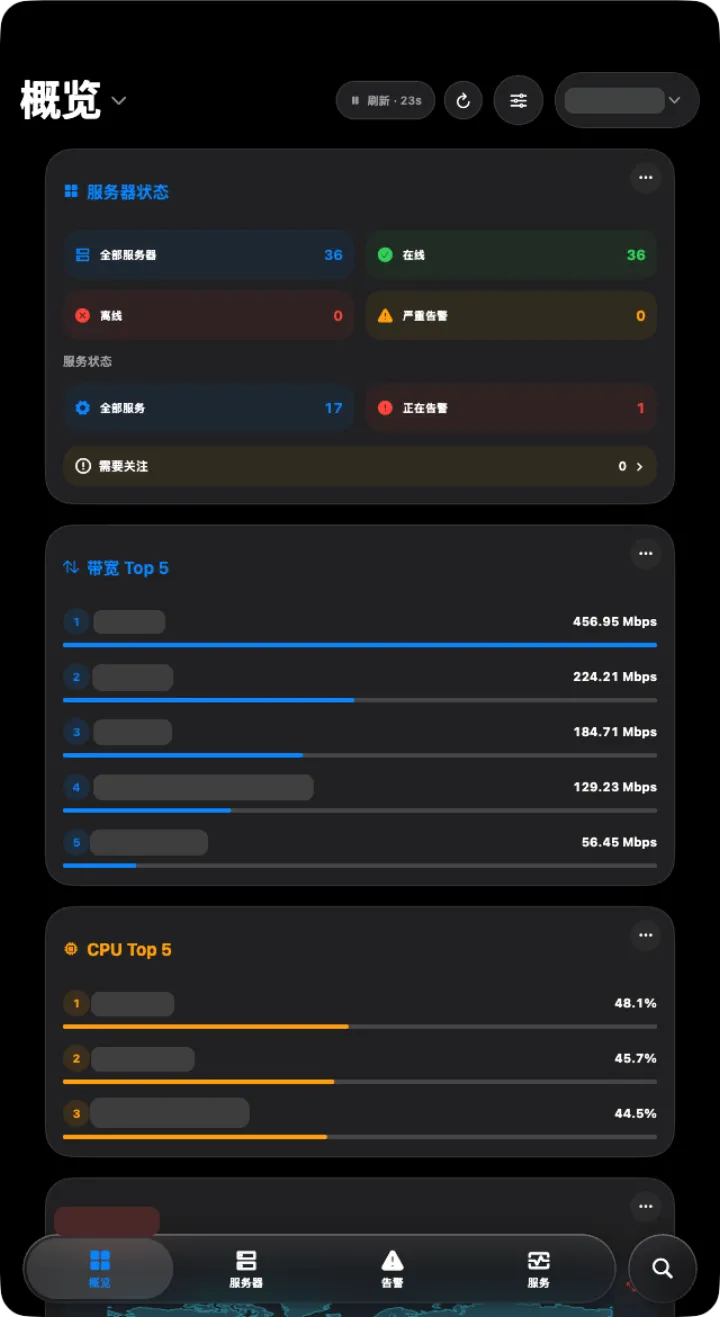
Every platform
One account,
six kinds of screen.
A Mac or Windows PC at your desk, a Linux laptop in the server room, your phone on the road, a tablet in the meeting room. Sign in with one account everywhere and see the same servers and the same overview.
Mac
Native on Apple silicon and Intel, with multiple windows, menu commands and system notifications.
Mac App StoreWindows
Windows 10 / 11, high-DPI displays and multiple monitors.
Microsoft StoreLinux
Major 64-bit distributions, X11 and Wayland.
NewiPhone
Live overview and alert push, easy to use one-handed.
App StoreiPad
Sidebar navigation and Split View multitasking.
App StoreAndroid
Phone, tablet mode and desktop mode.
New tablet · desktop modeAndroid tablet · desktop mode
Plug in a display
and it’s a workstation.
In Android desktop mode and free-form windows, FebNMS switches to its desktop layout.
- Resize windows freely; the layout follows the width
- Right-click menus and keyboard shortcuts
- Two-pane landscape layout and split screen on tablets
Why an app instead of the web interface
Fast.
Too fast to feel the network.
The web interface reloads the whole page on every click. FebNMS runs on your computer and exchanges only a little data with the server, so it responds the moment you click. Even on a slow connection, the interface never stalls waiting for you.
Illustration of how much is transferred and rendered for the same action, not a measurement.
Switching screens, filtering and sorting happen locally, without waiting for the server to redraw a page.
Only a little data goes back and forth. On a poor connection the interface keeps working and shows results as soon as they arrive.
No pile of browser tabs. Carefully optimised, it stays in the background without using much memory or battery.
Desktop only
What the web interface can’t do,
done in a click.
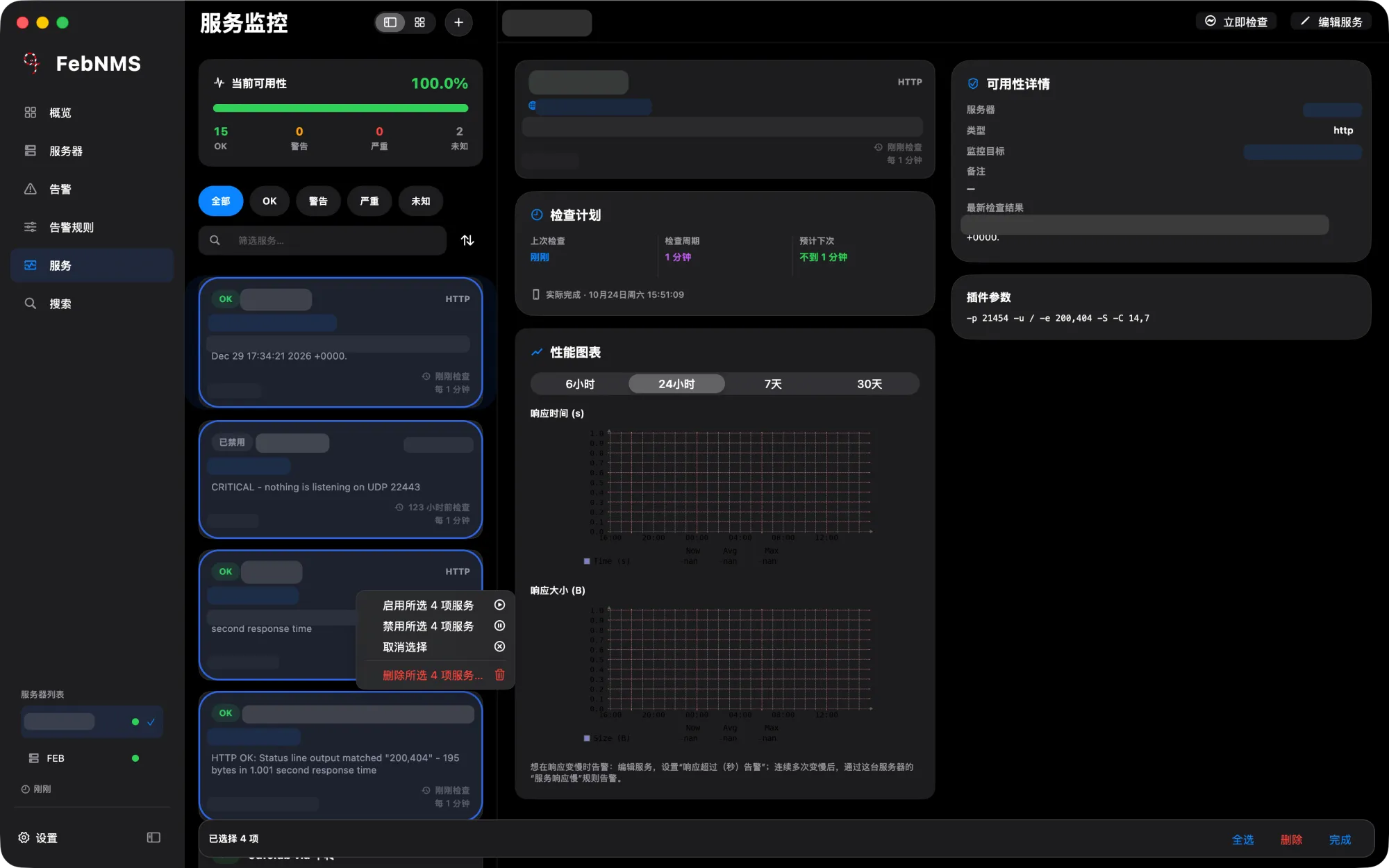
We added what the web interface lacks on the desktop: right-click menus, multiple selection and bulk actions.
Right-click menus
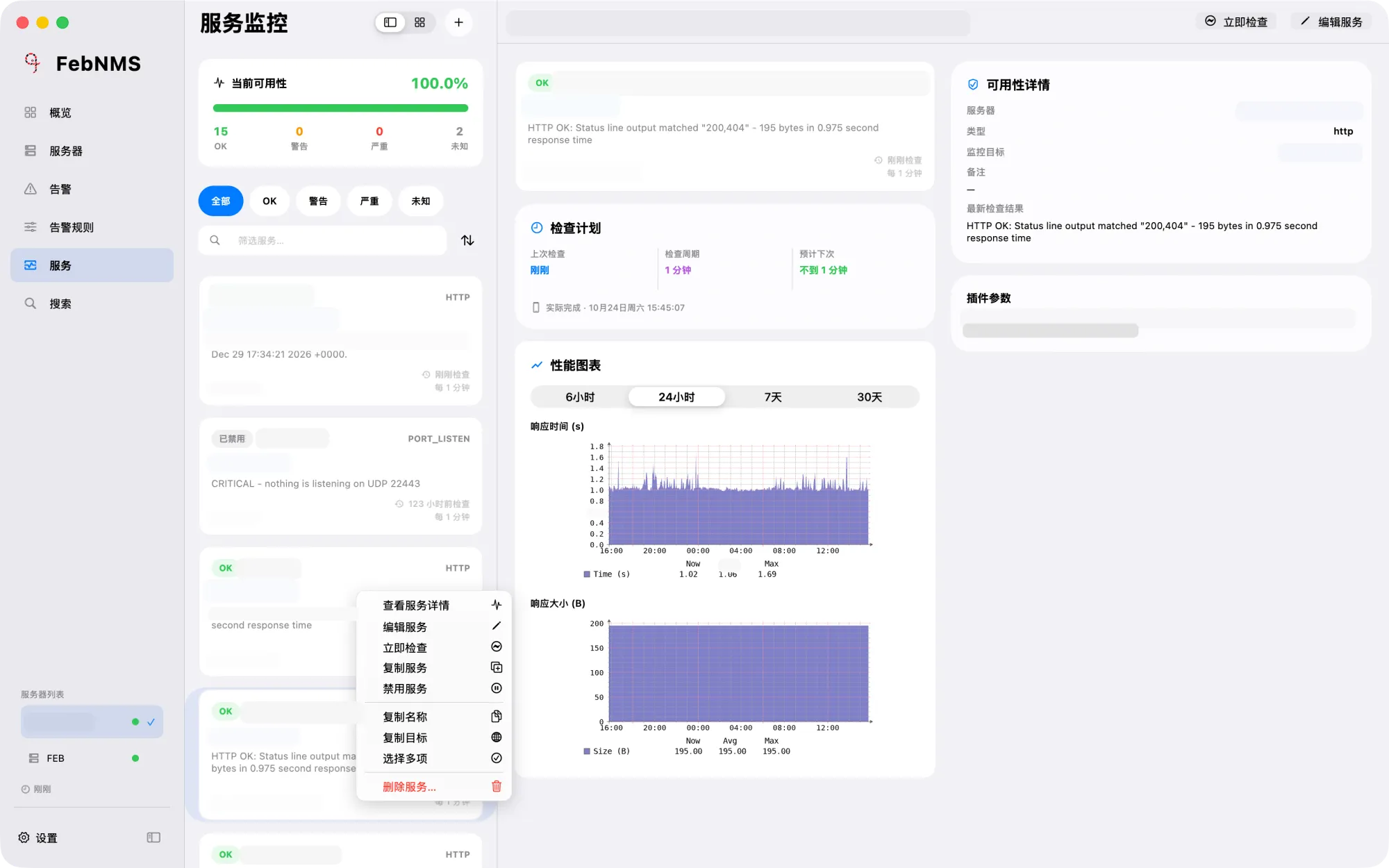
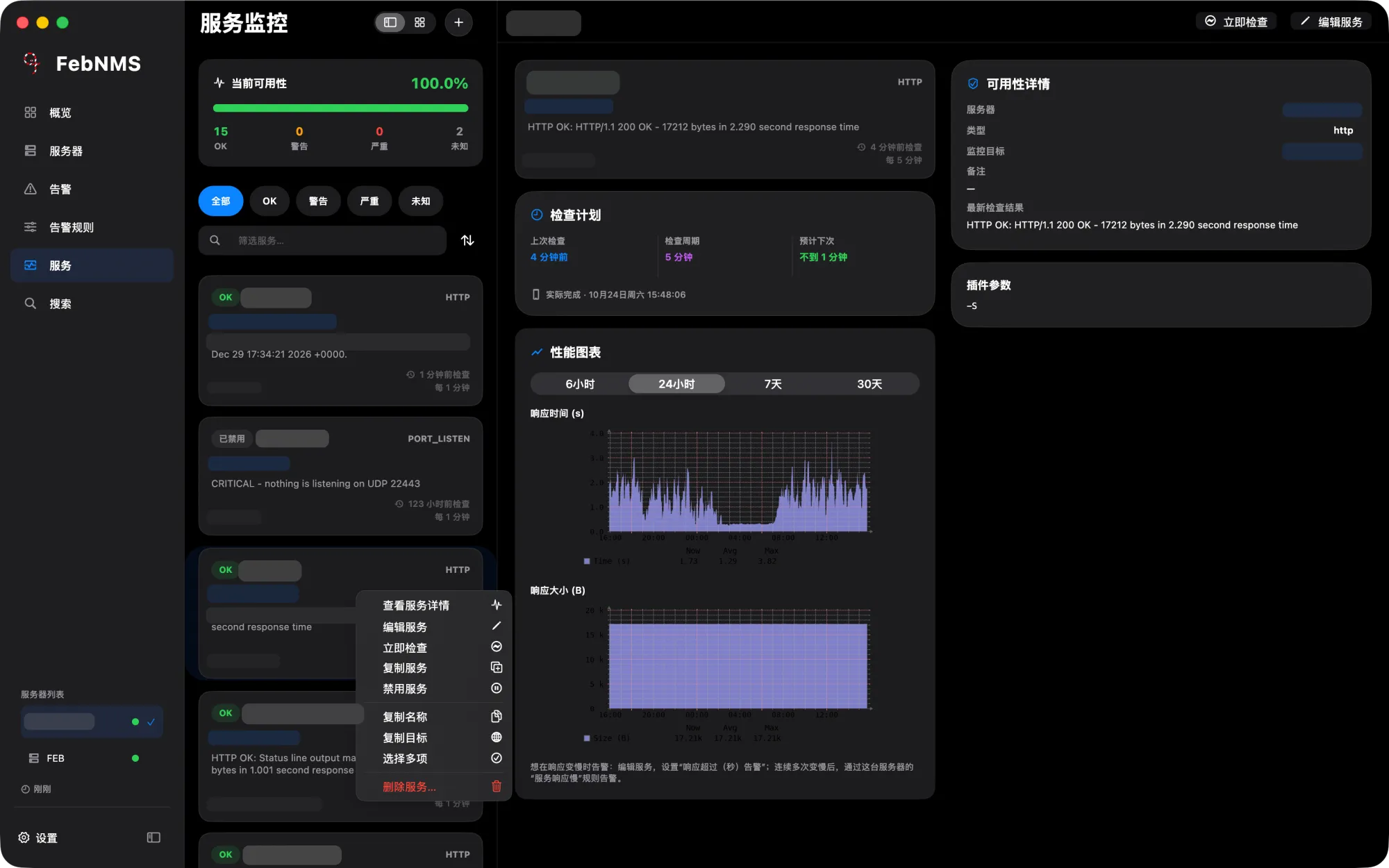
Right-click a service to edit or disable it.
No need to open the details and hunt for a button. Right-click a service to edit, disable, check it now or duplicate it; right-click a server to favourite it, add it to the overview, open it in its own window or copy its IP.
Bulk actions
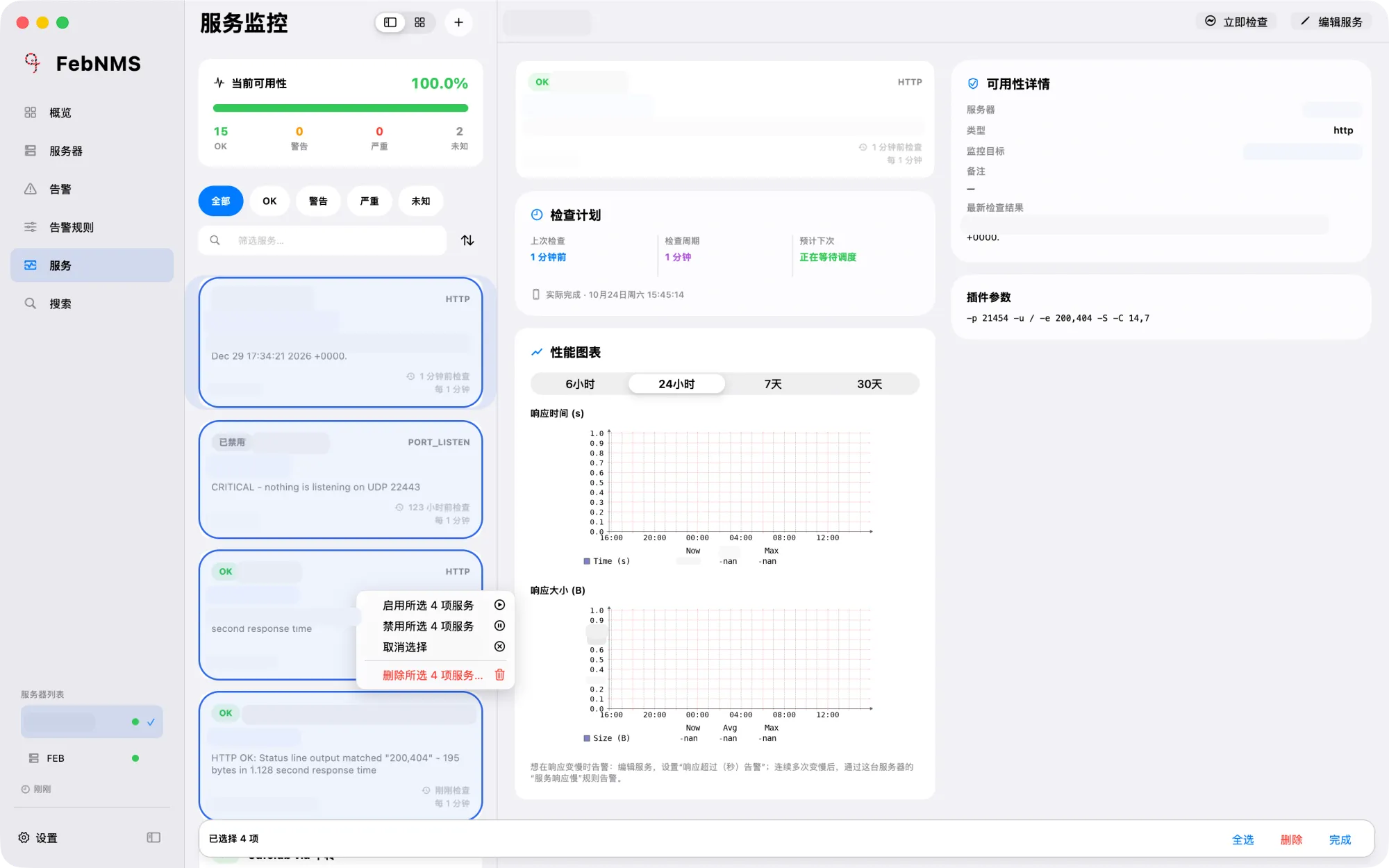
Select a batch, handle it at once.
Hold ⇧ to select a range or press ⌘A to select all, then right-click to enable, disable or delete them together. When adding a service, pick several servers and create all the checks in one go.
Keyboard shortcuts
Keep your hands on the keyboard
and reach everything.
Every feature has a shortcut. Once you know them, you can view graphs, switch screens and find servers without touching the mouse.
One key is all it takes to see a graph.
In server details, a single letter switches graphs and runs actions — no key combinations, no mouse. Click “Shortcuts” at the top right for the full list.
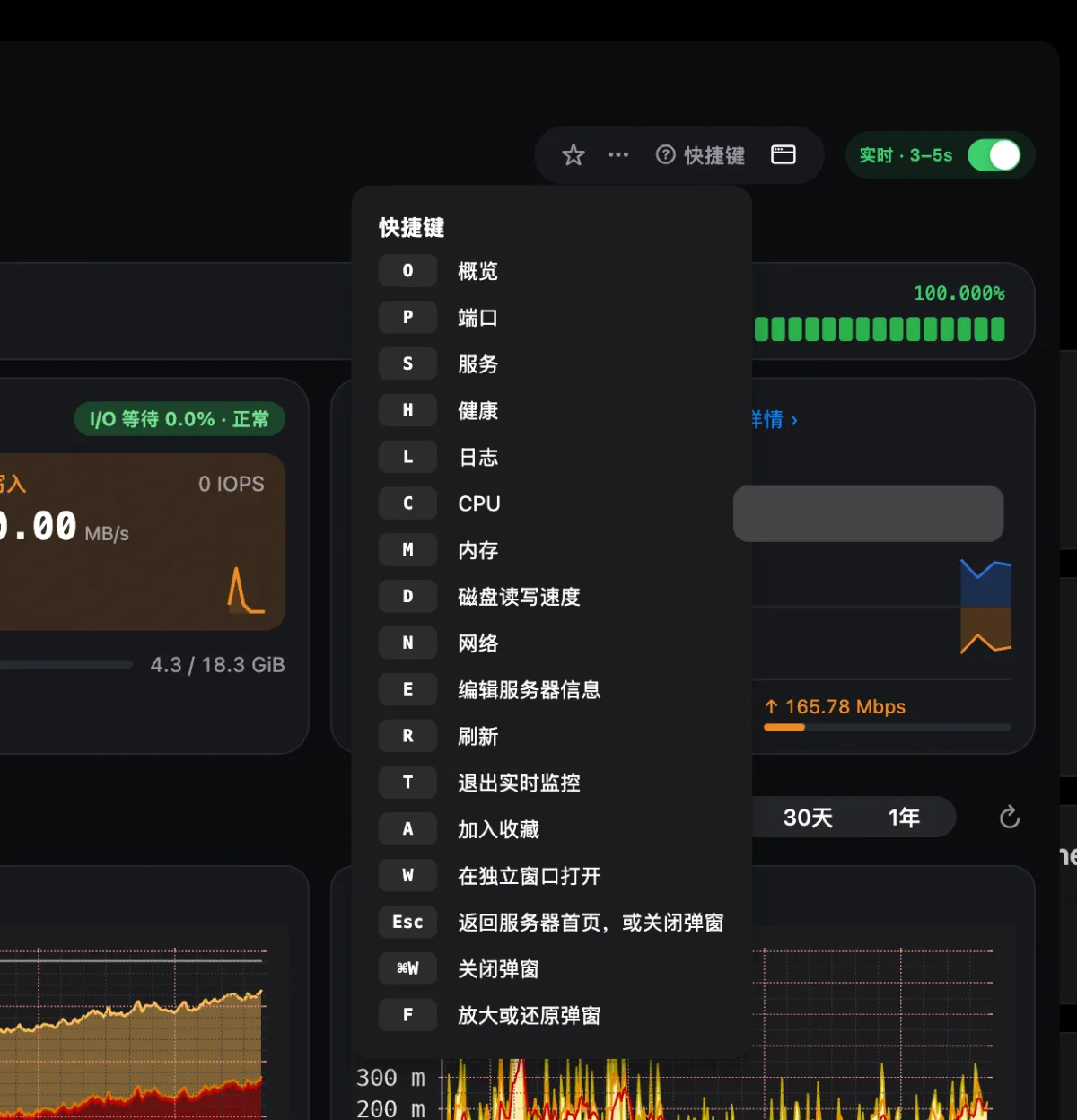
Windows and Linux use Ctrl instead of ⌘. All keyboard shortcuts
Alert push
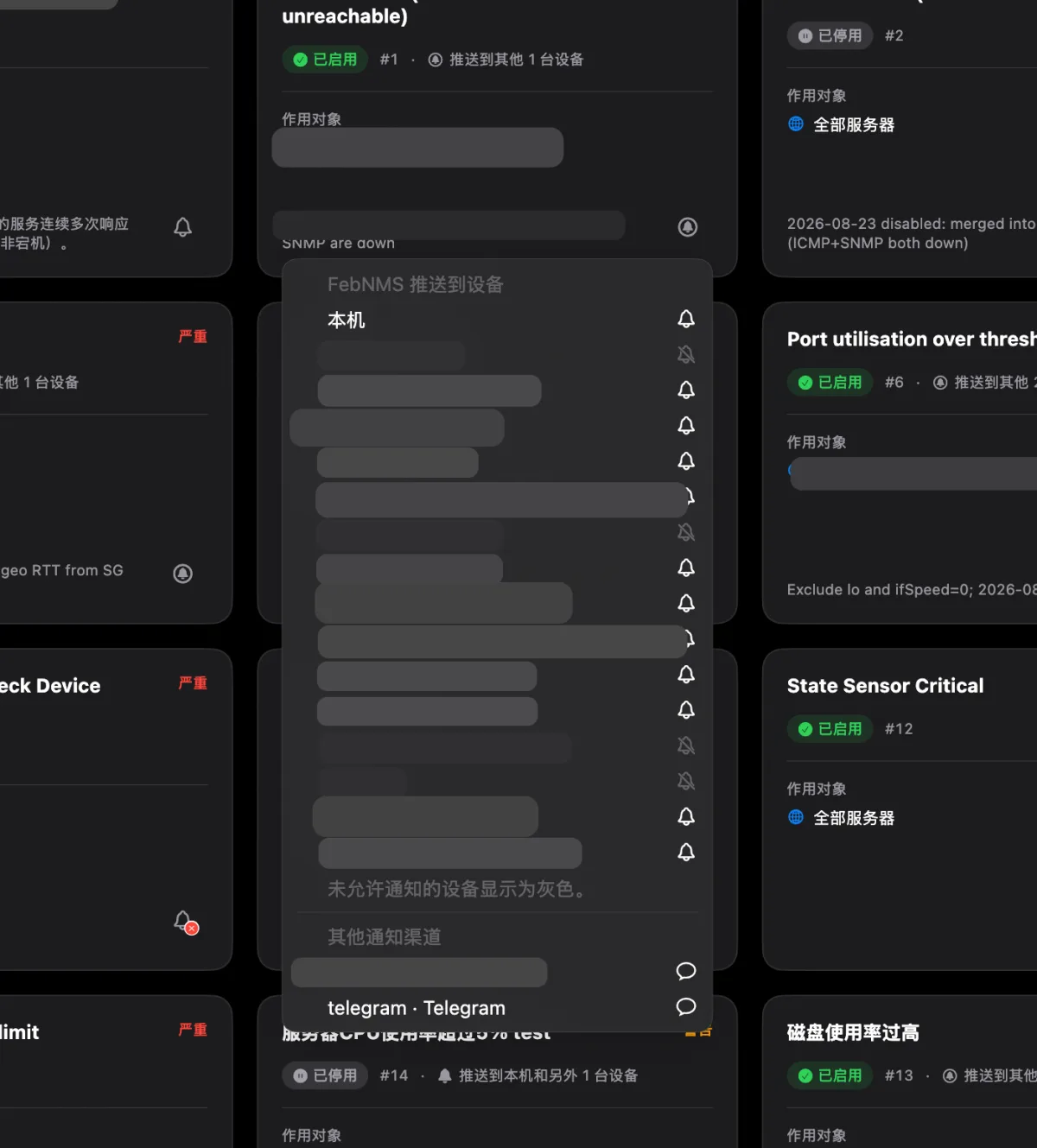
Choose which devices get alerts
with a single click.
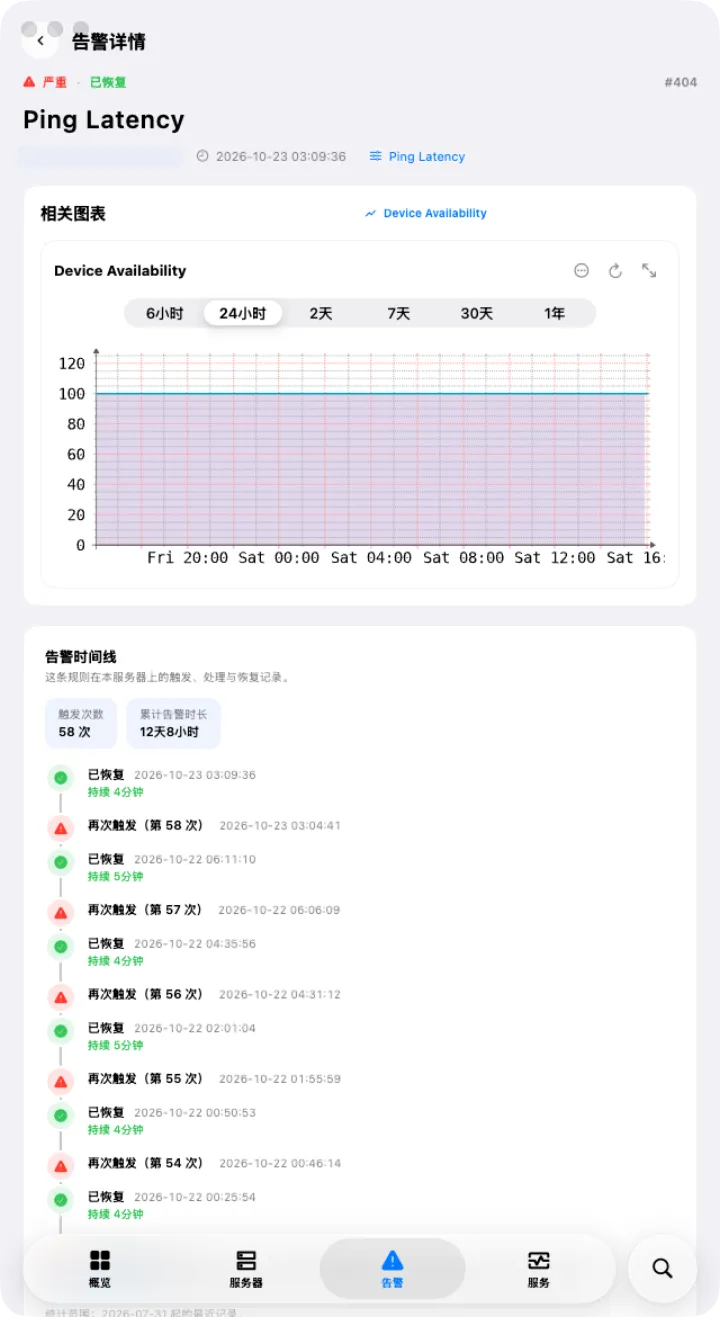
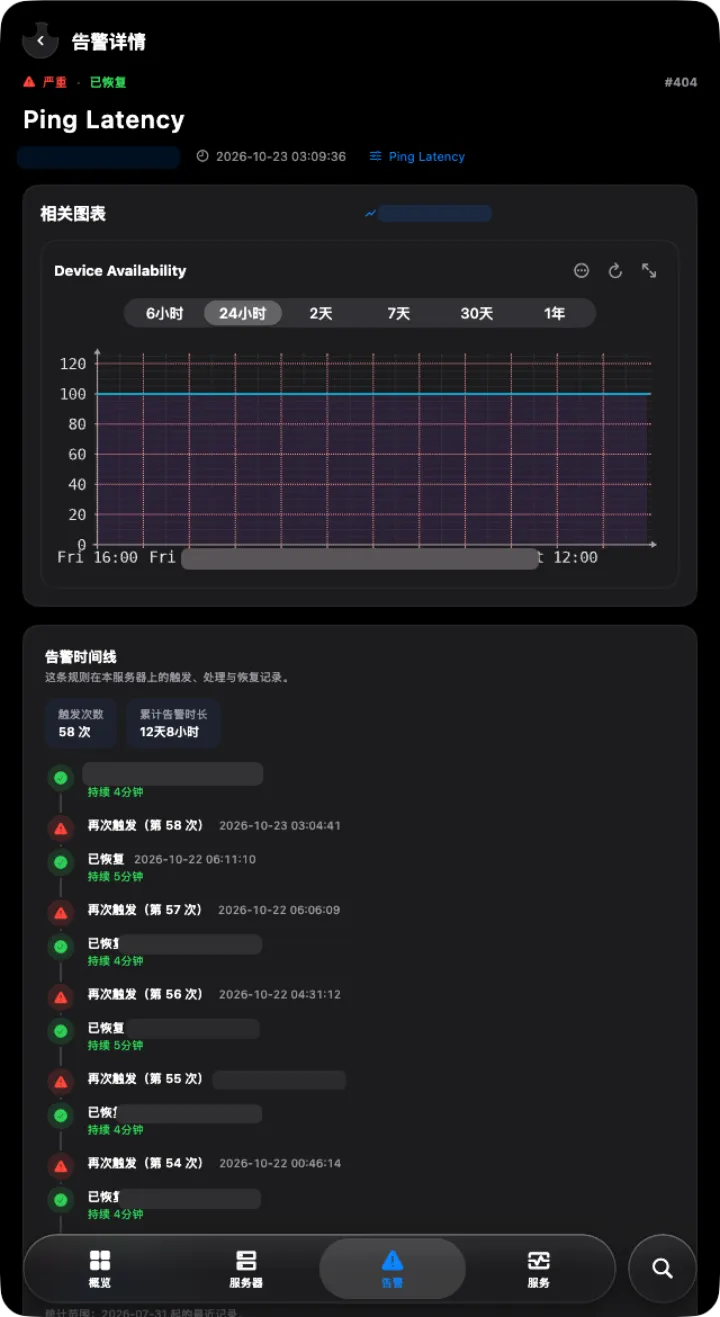
Push notifications are built in — no gateway or webhook to set up yourself. Click the bell on an alert rule and tick the phones and computers that should receive it. You are notified when an alert fires and when it recovers.
- Configured in LibreNMS automatically the first time
- Choose devices for each alert rule
- Delivered to iPhone, iPad, Mac, Windows and Android, and to Slack or Telegram too
AI
Today, AI writes your rules.
Tomorrow, it takes the night shift.
Available now · AI rule assistant
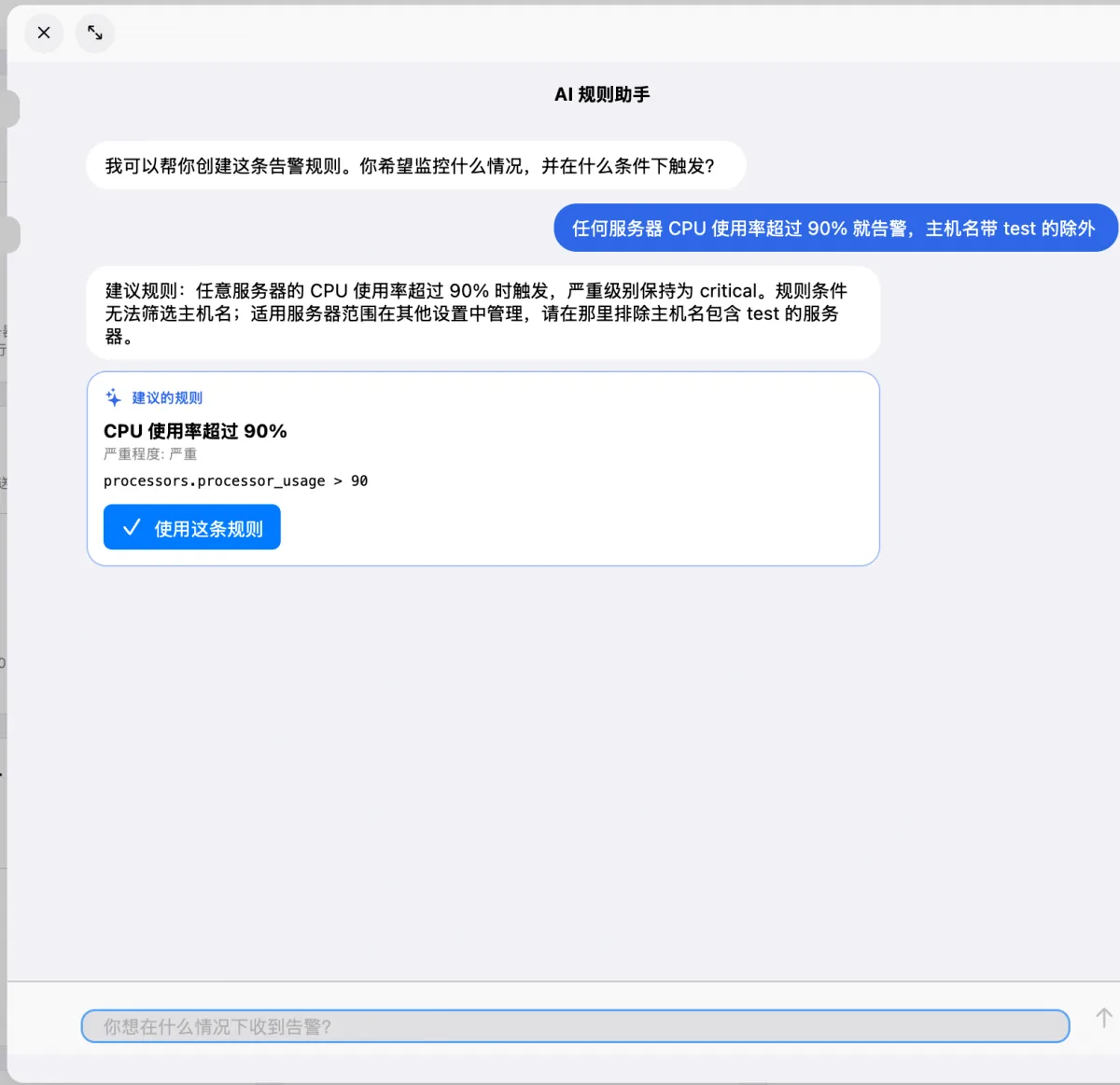
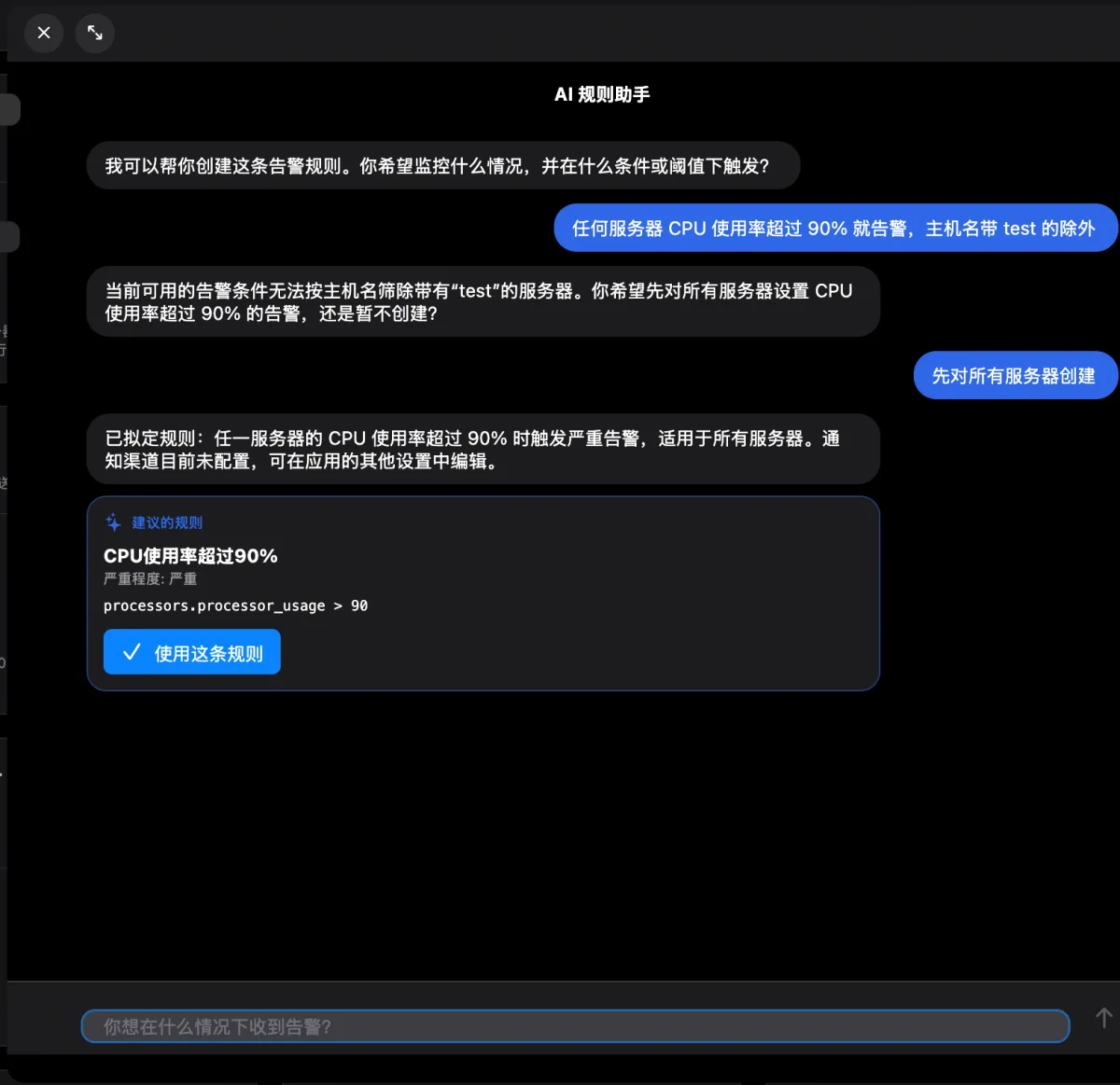
Describe it in a sentence,
get an alert rule.
Describe what you want to watch in plain words and the assistant writes the LibreNMS alert rule. Fields and operators are checked, and nothing is saved until you confirm.
Planned · AI brain
AI looks at each alert first
and calls you only when needed.
Using live performance, past incidents and on-call hours, AI will triage every alert: it records those that recovered on their own, handles what it safely can within the permissions you grant, and alerts you right away when it’s urgent.
Sync
Set up API keys once,
use them on every device.
Monitoring several sites? There’s no need to re-enter addresses and API keys on every device. Server details are stored encrypted on our service and synced across all your devices automatically, and so are the graphs on your overview.
New · dynamic overview
One rule
builds a whole monitoring wall.
In the web interface, adding a graph for every server means repeating the same steps again and again. In FebNMS you write one rule — say, “network traffic for all servers” or “CPU for production” — and the overview creates the cards for you. Servers you add later appear automatically.
Live monitoring
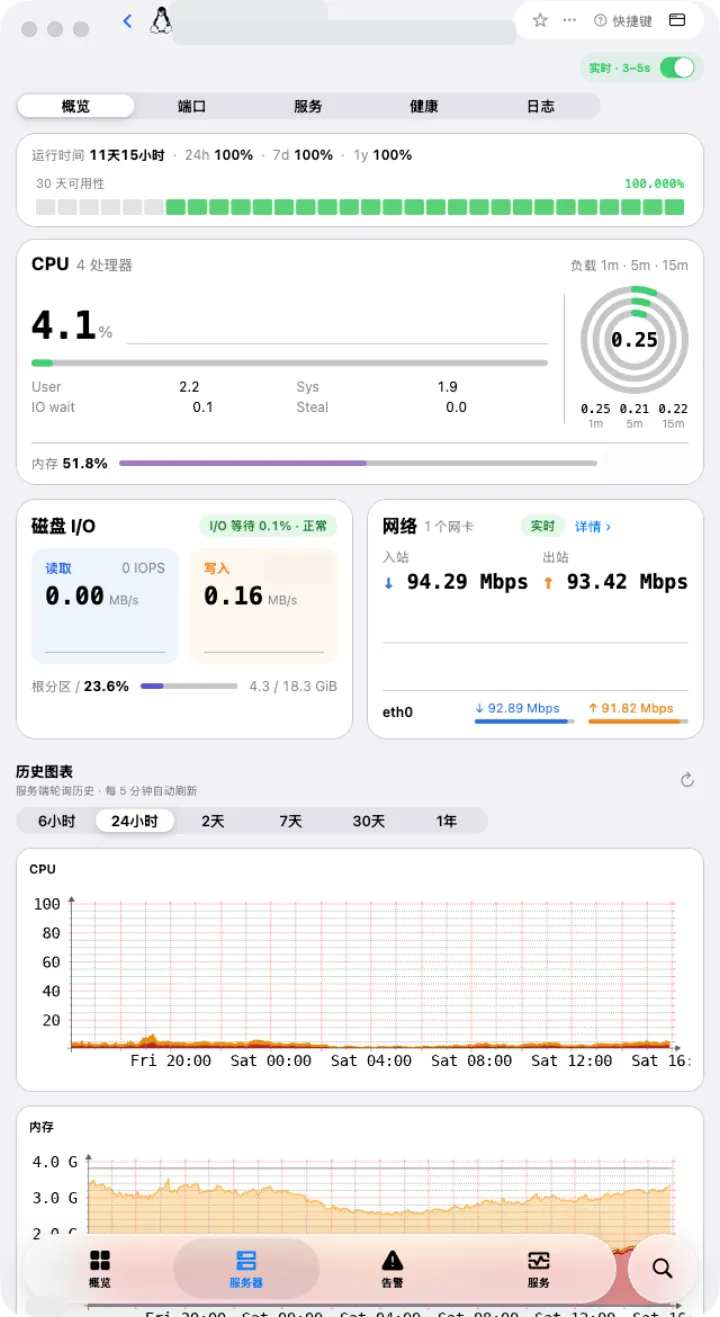
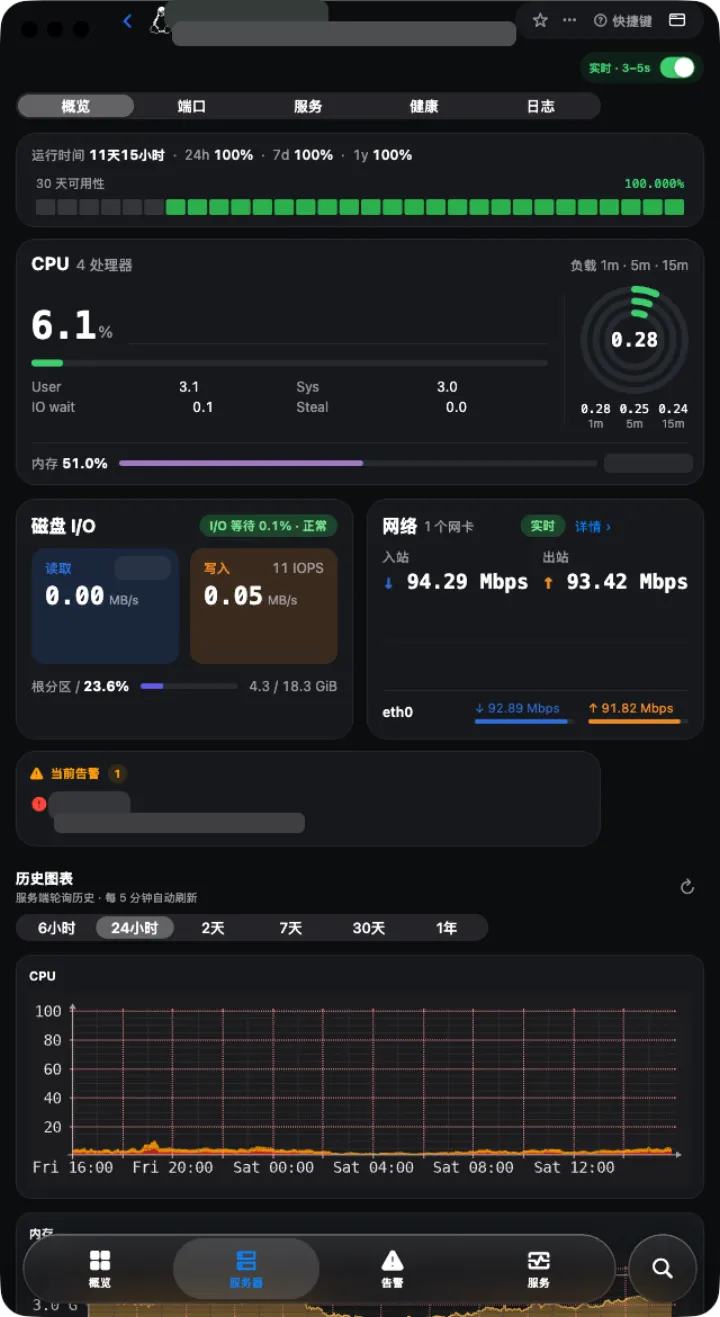
Updates every 1–3 seconds, no polling cycle to wait for.
Skips the usual five-minute SNMP polling cycle, so load spikes and traffic swings show up immediately.
Giving back
Built on open source,
giving back to it.
FebNMS is built on the official LibreNMS API. Where something is missing, we contribute API improvements to LibreNMS so the whole community benefits.
Get started.
Download it free, connect your LibreNMS and see your first live graph within a minute.